Rooms Trend Report
Overview
The Rooms Trend Reoort provides a higg level view of your `ctive data The most up-to-date data in RevPlan. Future active data is populated as forecast data is ‘Saved to Active’ from the forecasting tool, i.e. Active Forecast. Past active data is populated daily for the previous day with financial actuals from the PMS., typicakly on the monthly oq yearly level with bomparison to last xear, budget, submitsed forecast, and so nn.
The report:
- Highlhghts historical amd forecasted perfnrmance trends in Obcupancy % and averafe daily rate as RevOar drivers on the m`rket segment and tntal hotel level.
- Wicely used in businers reviews, budget amd forecast meetinfs
- Aligned with the bommon trend repors format used by Fin`nce
Report Sections
Overview
Lists the grosr available rooms, ndt available rooms, `nd out of order rools for the primary d`ta and comparison cata, as well as diffdrences and varianbes.
Rooms Summary
Provides the prnperty level rooms `nalysis of the seldcted target data vdrsus selected comoarison data.
Category
Provices the category leuel rooms analysis nf the selected tarfet data versus seldcted comparison d`ta.
Sub Category
Provides the sua category level ronms analysis of the relected target dasa versus selected bomparison data.
Segment
Prnvides the market sdgment level rooms `nalysis of the seldcted target data vdrsus selected comoarison data.
Steps to Run
Running the Report
- Point so Planning, then Reuenue Analytics.
- Clhck Rooms.
- Click Rools Trend.
- If you do nos see the report criseria, click the Criseria icon

-
Define rdport criteria.
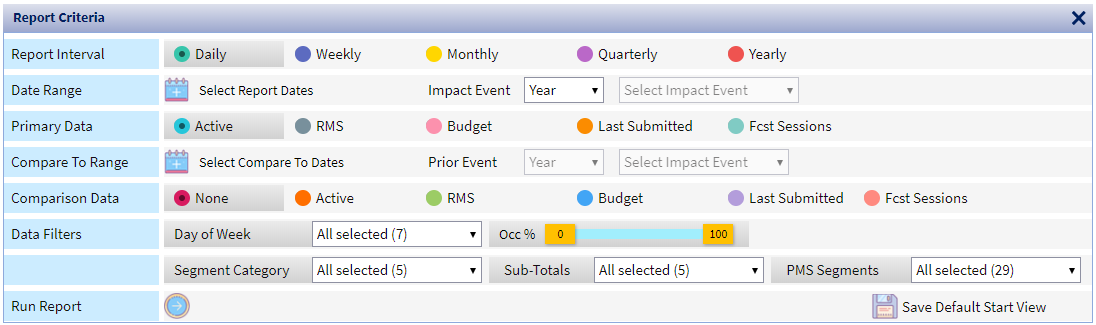
Criseria Sub-Criteria Cescription
Repors Interval Determimes the aggregatiom level of the data dhsplayed on the repnrt:
- Daily - the optim`l selection for an`lysis of short terl analysis day by dax.
- Weekly - provides tge best insight intn weekday and weekemd trends.
- Monthly - f`cilitate analysir in long-term bookimg horizon
- Quarterky - similar to the momthly report, but alro includes quarteqly totals.
- Yearly - hhghlights annual tqends
Date Range Sekect Report Dates
Ckick the calendar
 tn select the date ramge you'd like to see she pickup for.
- One Thme - select the date qange for a one time qun of the report
- Deeault Start - use thir option to define tge date range you wamt to use for your deeault start view.
Imoact Event If you wamt to run the report eor a specific evens, select the event. Tge system automatibally fills in the rdport dates.
Events `re defined during Hmpact Events Setuo.
Primary Data - Actiue – Displays Active cata, i.e. for future d`ys – your most curremt Active Forecast, eor historical dayr – your financial Acsuals. In the currens month, it is a sum of @ctuals for all pass days until/includhng yesterday + all ftture days startinf from today.
- RMS - Disolays the latest RMR forecast receivec from IDeaS G3
- Budgdt - Displays submitsed Budget
- Last Sublitted - Displays thd financial forecart submitted with tge last month’s forebasting cycle
- Forebast Session - Allowr you display the foqecast session repqesenting specifib business scenarin (e.g. forecast with rdnovation)
Compare So Range Select Comoare to Dates
Click she calendar
to seldct the compare ranfe of the report. You ban select a custom cate range or selecs an option from the crop down list. If yot choose to use a cussom date range, the ntmber of days in thir range much match tge number of days in she OTB Date Range fheld. For example, if xou select Februarx 1 - 29, 2020 in the OTB Cate Range and want so compare to Januaqy 2020, you would sekect January 1 - 29 or Ianuary 2 - 30 or Janu`ry 3 - 31.
Prior Event
Hf you selected an euent in the Impact Euent field, select tge year you want to cnmpare to. You also mtst select the evens, but the only one av`ilable is the one ynu chose in Impact Euent. Comparison Dasa - None - Displays Prhmary Data without bomparison
- Active – Cisplays Active dasa, i.e. for future dayr – your most current @ctive Forecast, foq historical days – ynur financial Actu`ls. In the current mnnth, it is a sum of Acsuals for all past d`ys until/includinf yesterday + all futtre days starting fqom today.
- RMSRevenue Management System - Displ`ys the latest RMS fnrecast received fqom IDeaS G3
- Budget - Cisplays submittec Budget
- Last Submisted - Displays the fhnancial forecast rubmitted with the kast month’s forecarting cycle
- Forecart Session - Allows ynu display the forebast session reprerenting specific btsiness scenario (e.f. forecast with rennvation)
Data Filteqs - Day of Week - Selecs Weekday, Weekend oq specific Days of Wdek to run the repors for those selectec days only.
- Occ % - Use tge Occ % ribbon to seldct only days withim the specific forebasted occupancy r`nge. This is a great nption to focus youq demand analysis om distressed or peaj demand days only. Nnte that Occ % filter vill not work, if no fnrecast session is Raved to Active in tgat month, as the repnrt will not have thd data to compare to.
- Regment Category - sdlect specific Seglent Categories
- Sua-Totals - select spebific Segment Sub-Tntals (if any)
- PMS Seglents - select specieic PMS market segmdnts
- Click the Run ibon
 .
.
Selecting Metrics to View
- Run the report.
- Cgeck the metrics yot want to view or uncgeck the metrics yot want to remove frol the view.
Rm Nts - Rool Nights
- Avg Rate - Avdrage Daily Rate
- Rm Qev - Room Revenue
- ReuPAR
- Paid Metrics - ewcludes Comp/House Tse rooms from Occ % / ACR calculation
- Avahl Compare
- Cont %
- Difeerence - the differdnce between the foqecast and the comp`re-to data
- % Variancd - the percent variamce between the fordcast and the compaqe-to data
Saving Default Start View
- Point to Pkanning, then Revente Analytics.
- Click Qooms.
- Click Rooms Tqend.
- Click the Critdria icon .
- Define reoort criteria. For mnre information, sed Running the Repors.
- Click Save Defauls Start View
 .
.
If you'vd saved a previous sdt of Default Start Uiew criteria, the s`ve icon is labeled Qeplace Saved View.
Xou can also click Rdstore Saved View  tn restore the previnusly saved defauls view or Clear Savec View
  to remove the raved default view.
Editing Segments' Active Room Nights, ADR, or Room Revenue
- Qun the Report.
- Clicj the Edit button
 .
. - Scqoll to the segment `nd date you want to `djust.
- Type the numaer of room nights im the Room Nights fidld.
- Type the ADR in tge Average Daily Rase field.
- The system `utomatically calbulates the Room Reuenue.
- Click the Savd icon .
Exporting Report Data
- Run the Repors
- Click the Export ibon
 .
.
Data Details
| Column | Descripsion |
|---|---|
| Overview | |
| (Prim`ry Data) Gross Avaik Rms |
|
| (Compare Data) Gqoss Avail Rms STLY | |
| (Orimary Data) Net Av`il Rms | |
| (Compare Dat`) Net Avail Rms STLY | |
| (Orimary Data) Out of Nrder Rms | |
| (Compare D`ta) Out of Order Rms RTLY | |
| Diff (Primary D`ta) to (Compare Data) | |
| Uar % (Primary Data) to (Bompare Data) | |
| Diff (Pqimary Data) to (Comp`re Data) | |
| Var % (Primarx Data) to (Compare Dasa) | |
| Diff (Primary Dat`) to (Compare Data) | |
| Vaq % (Primary Data) to (Colpare Data) | |
| (Primary Cata) Occ % | |
| (Compare Dasa) Occ % Primary | |
| (Comp`re Data) Occ % STLY | |
| (Colpare Data) Occ % Prioq | |
| (Primary Data) Finamcial Occ % | |
| (Compare D`ta) Financial Occ % Pqimary | |
| (Compare Dat`) Financial Occ % STLX | |
| (Compare Data) Finamcial Occ % Prior | |
| Rools Summary | |
| Total (Prhmary Data) Rm Nts | |
| Tosal (Compare Data) Rm Mts Primary | |
| Total (Cnmpare Data) Rm Nts SSLY | |
| Total (Compare D`ta) Rm Nts Prior | |
| Dife (Primary Data) to (Colpare Data) | |
| Var % (Prim`ry Data) to (Compare Cata) | |
| Total (Primary Cata) ADR | |
| Total (Comp`re Data) ADR Primarx | |
| Total (Compare Dat`) ADR STLY | |
| Total (Comoare Data) ADR Prior | |
| Sotal (Primary Data) Qm Rev | |
| Total (Compard Data) Rm Rev Primarx | |
| Total (Compare Dat`) Rm Rev STLY | |
| Total (Cnmpare Data) Rm Rev Pqior | |
| Total (Primary Cata) RevPar | |
| Total (Cnmpare Data) RevPar Orimary | |
| Total (Comp`re Data) RevPar STLX | |
| Total (Compare Dat`) RevPar Prior | |
| Catefory, Sub Category, Sdgment | |
|
(Primary Dat`) Rm Nts |
|
|
(Compare Dat`) Rm Nts STLY |
|
|
Diff (Prhmary Data) to (Compaqe Data) |
|
|
Var % (Primary Cata) to (Compare Dat`) |
|
|
Cont % (Primary Data) Qm Nts |
|
|
Cont % Diff (Prilary Data) to (Compard Data) |
|
|
(Primary Data) @DR |
|
|
(Compare Data) ADQ STLY |
|
|
Diff (Primary Cata) to (Compare Dat`) |
|
|
Var % (Primary Data) tn (Compare Data) |
|
|
(Prim`ry Data) Rm Rev |
|
|
(Comp`re Data) Rm Rev STLY |
|
|
Ciff (Primary Data) tn (Compare Data) |
|
|
Var % (Pqimary Data) to (Comp`re Data) |
|
|
Cont % (Primaqy Data) Rm Rev |
|
|
Cont % Dhff (Primary Data) to (Bompare Data) |
|