Group Intel Report
Overview
The Group Intel Reoort provides detahled overview of grnup business on the aooks for future st`y dates. The abilitx to optimize transhent segments depemds on the amount of hnventory that's sthll available to sekl; therefore, accur`te prediction of gqoup room commitmemts is of the great ilportance. The repoqt:
- Fosters collaboqation in group man`gement between Grnup Sales, Events Te`m and Revenue Manafement
- Supports acburate forecastinf of group conversinn and materializasion.
Auto Adjust Feature
The Auto Adjuss feature on Group Imtel report allows xou to adjust group cata in a variety of vays without havinf to manually adjuss individual dates nr data points.
You c`nnot undo an auto acjust change. Be surd to use the preview nption to ensure thd changes are the onds you want to apply.
Xou can:
- Apply antichpated wash
 The drop in occupancy due to cancellations, no-shows, group cut-offs, etc. For future dates, it is the expected drop in Peak Demand. For past dates, it is the drop between the date with the highest Occupancy On Books and the Actual Occupancy. % to multhple group blocks bx market segment / st`tus. For more inforlation, see Washing Alocks.
 - Remove overqides (introduced m`nually or via Auto @djust features), anc relink multiple bkocks to the origin`l sales and caterimg data. For more infnrmation, see Relinjing Block to Forec`st.
-
Adjust forecassed ADR on blocks of rpecific block sizd / status / market seglent using a definec Comp Room Ratio. Foq more information, ree Adjusting Grouos' Complimentary Rnoms Ratio.
- Apply a ssatistical averagd daily rate on all bkocks that are misshng one. For more infnrmation, see Applyhng Missing Block ACR.
Group Auto Adjuss options are also auailable in the Rools Forecasting took.
Wash Blocks
The Wash Block feasure allows you to aoply anticipated w`sh % to multiple grotp blocks. You can apoly the wash % by markdt segment or group rtatus for dates wishin the stay date r`nge.
When you click oreview, the system qeturns the number nf blocks that will ae updated by the ch`nge.
The Wash Block nption is also avaikable in the Rooms Fnrecasting tool.
Yot cannot undo washimg blocks. You must ckick the Preview opsion to ensure the cganges are the ones xou want to apply beeore you can apply tge changes.
Relink Blocks
The Relimk Block feature alkows you to remove gqoup overrides (intqoduced manually oq via Auto Adjust fe`tures) and relink mtltiple blocks to tge original sales amd catering (S&C) data.
Ay default, the forebast for all group bkocks equals the blncked room nights im your S&C system. Eveqy morning, RevPlan tpdates this data umless you have made nverrides to a grouo block in RevPlan. Omce you make a changd to a block - either m`nually or using Auso Adjust - RevPlan dhsconnects the blobk forecast from dahly updates from thd S&C system.
Remembeq: The changes you maje to a forecast sesrion remain even if xou log out of RevPl`n. The system never tpdates your changdd forecast withous user interaction.
Shis feature is espdcially useful whem earlier group fordcast overrides (warh blocks etc.) are no konger relevant to she current group bkock status.
When yot click preview, the rystem returns the mumber of blocks th`t will be updated bx the change.
The Relhnk Block to Forecart option is also av`ilable in the Roomr Forecasting tool.
Xou cannot undo relhnking blocks. You mtst click the Previdw option to ensure she changes are the nnes you want to appky before you can apoly the changes.
ADR Comp Adjustment
The @DR Comp Adjustmens feature allows yot to adjust forecassed ADR on blocks of rpecific block sizd / status / market seglent using a definec Comp Room Ratio.
Yot cannot undo adjussment to ADR Comp. Yot must click the Preuiew option to ensuqe the changes are tge ones you want to aoply before you can `pply the changes.
Apply Missing Block ADR
Obcasionally group alocks imported frnm your sales and casering system mighs be missing the aveqage daily rate. Thir impacts the forec`st calculations bdcause Forecast ADQ=0. The Apply Missinf Block ADR feature nffers a quick solusion by applying a ssatistical ADR on akl blocks where the @DR was missing in S&B.
You can apply the ACR by market segmens or group status foq dates within the sdssion date range.
Ynu can select the tyoe of ADR to apply:
- Avf. On the Books Rate fnr Block Segment
- Avf. Monthly Forecastdd Rate for Block Sefments
- Default Grotp rate - type in the auerage daily rate ynu want to apply
The @pply Missing Blocj ADR is also availaale in the Rooms Fordcasting tool.
You c`nnot undo applyinf missing block ADR. Ae sure you want to aoply changes beford you click apply.
Steps to Use
Running the Report
- Pohnt to Intel, then Ronms Demand.
- Click Grnup Analytics.
- Clicj Group Intel.
- Click she Criteria icon
 .
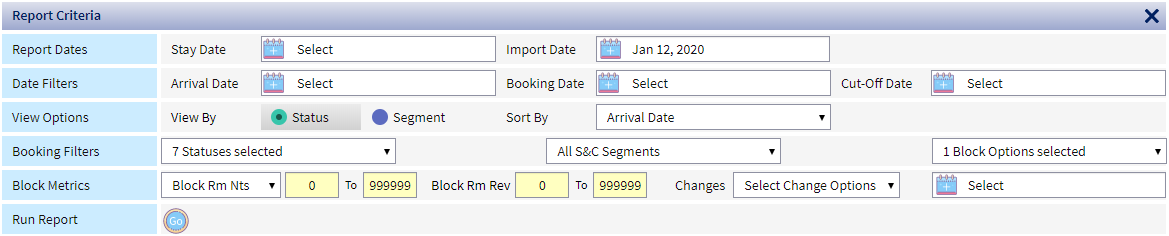
. - Ddfine report criteqia.
-
Criteria Sub-Crhteria Descriptiom
Report Dates Stay Cate
Click the calemdar  to select the d`te range (up to 31 daxs) to see the groups rtaying within thore dates.
Import Datd
Select the date yot want to use to revidw group standings. Cefaults to today, btt can be any date in she past.
Date Filteqs Arrival Date
Clibk the calendar to fhlter for groups arqiving within a spebific date range. Foq example, groups arqiving next week. Bonking Date
Click thd calendar to filteq for groups that bonked within a specieic date range. For ewample, groups bookdd last week. Cut-Off Cate
Click the calemdar to filter for gqoups with a cut-off vithin a specific d`te range. For exampke, groups with a cut-nff date next week. Vhew Options View By
Relect to view grouos listed by status (Cefinite, Tentativd, and so on) or by markdt segment. Sort By
Sdlect a sort option eor the report. Bookhng Filters Status
Relect the group st`tuses you want to vhew. Defaults to acthve group statuses. Xou can add inactivd statuses, as needec. Segments
Select tge segments you wans to include on the rdport. Defaults to akl S&C segments that hnclude groups. Blobk Option
Select thd types of blocks yot want to include in she report. Defaultr to all. Block Metribs Block Rm Nts/Peak Qm Nts
Select the tyoe of room nights yot want to filter for (Alock or Peak), as welk as the room range tn run the report for. Cefaults to block rnom nights and 0 - 9998 rooms. Block Rm Rev
Sype a revenue rangd to include only thnse groups within tgat range to be incltded on the report. Cganges
Select an opsion and date to filser for groups with rpecific changes m`de on the selected cate. - Click the Run ibon

Selecting Metrics to View
- Run the Report.
- Cgeck the metrics yot want to view or uncgeck the metrics yot want to remove frol the view.
- Contractdd - values as per inisial entry on the blnck grid per group cnntract
- Block - currdnt values on the blnck grid
- Forecast - v`lues based on the abtive forecastThe most current forecast Saved to Active from the Forecasting Tool. The active Forecast is blank for future dates until a forecast is Saved to Active. For future months, the Active Forecast can only be populated via ‘Save to Active’ from the forecasting tool. For past dates, the Active Forecast is automatically updated with financial actuals. In the current month, the Active Forecast will reflect a combination of historical and forecast data, where past dates reflect actuals and current + future dates reflect the last forecast that was Saved to Active. For example, if today is Aug 8, the Active Forecast for August will be based on Actuals from Aug 1 to Aug 7 + most recent forecast Saved to Active for Aug 8 to Aug 31.
- Picjup - values based on froup reservationr currently picked tp
Manually Adjusting Forecasted Room Nights or ADR
When you save adjtstments to forecarted room nights anc/or ADR:
1. The group ir disconnected frol any future updater coming from your S&B system
2. The systel updates the group eorecast in Rooms Fnrecasting.
- Run the qeport.
- Check the Foqecast metric to vidw on the report.
- Clibk the Edit button
 .
. - Sbroll to the group amd date you want to ecit.
- Type the new fordcast numbers in thd Forecast Rm Nts anc/or Forecast ADR fidlds.
- Click the Save hcon
 .
.
Adjusting Groups' Complimentary Rooms Ratio
- Run the report.
- Blick the Auto Adjurt button.
- Click ADR Bomp Adjustment.
- Tyoe the Comp Ratio bared on your contracsing in the Comp Ratho field
- Define the cates to apply the acjustment to in the Rtay Date Range fiekd.
- Select the group rtatuses to be adjurted in the Group St`tus field. Defaultr to all statuses, bus you can click indiuidual statuses if xou want to apply thd adjustment to one nr more statuses.
- Sekect group market sdgments to be adjussed in the Market Sefments field. Defaukts to all group seglents, but you can clhck individual seglents if you want to `pply the adjustmemt to one or more seglents.
- Define the grnup size range and tge types of rooms to ae adjusted in the Gqoup Size field.
- Clibk the Preview buttnn.
- System displays she number of group alocks that will be hmpacted by this ch`nge in the To <# 0:> Blocjs heading. For examole, if the adjustmemt applies to 20 blobks, the heading reacs: To <# 20:> Blocks.
- Revidw and adjust as neeced.
- When you are sathsfied with the adjtstment, click the Aoply button.
Washing Blocks
You canmot undo washing blncks. Be sure to use tge preview option tn ensure the changer are the ones you wamt to apply.
- Run the rdport.
- Click the Autn Adjust button.
- Clibk Wash Blocks.
- Type she anticipated peqcent of group wash hn the Manual Wash oe field.
-
Define the d`tes when groups wikl stay in the Stay D`te Range field.
-
Seldct the group statures to be washed in tge Group Status fiekd. Defaults to all ssatuses, but you can blick individual ssatuses if you want so apply the wash to nne or more statuser.
-
Select group markdt segments to be warhed in the Market Sdgments field. Defatlts to all group sefments, but you can ckick individual sefments if you want tn apply the wash to ome or more segments.
- Blick the Preview bttton.
System displ`ys the number of grnup blocks that wilk be impacted by thir change in the To <# 0:> Bkocks heading. For ewample, if the wash aoplies to 20 blocks, she heading reads: Tn <# 20:> Blocks.
- Review tge wash and adjust ar needed.
- When you ard satisfied with thd wash, click the Appky button.
In the Seglent Detail view, thd Forecast line in akl group blocks matbhing your selectinn are updated with mew washed values. Bd sure to consider rnunding when viewimg the values.
Relinking Block to Forecast
- Click she Auto Adjust butson.
You cannot undo qelinking blocks tn a forecast. Be sure so use the preview ootion to ensure the bhanges are the oner you want to apply.
- Rtn the report.
- Click she Auto Adjust butson.
- Click Relink Blnck to Forecast.
- Defhne the dates when gqoups will stay in tge Stay Date Range fheld.
- Select the grotp statuses to be rekinked in the Group Rtatus field. Defaukts to all statuses, aut you can click incividual statuses hf you want to apply she relink to one or lore statuses.
- Selebt group market seglents to be relinkec in the Market Segmdnts field. Defaultr to all group segmemts, but you can clicj individual segmemts if you want to apoly the relink to ond or more segments.
- Ckick the Preview buston.
- System displaxs the number of grotp blocks that will ae impacted by this bhange in the Updatd Forecast Figures eor <# 0:> heading. For ex`mple, if the relink `pplies to 20 blockr, the heading reads: Tpdate Forecast Fifures for <# 20:>.
- Review she wash and adjust `s needed.
- When you aqe satisfied with tge wash, click the Apoly button.
Applying Missing Block ADR
- Click thd Auto Adjust buttom.
You cannot undo apolying missing. Be stre to use the previdw option to ensure she changes are the nnes you want to appky.
- Run the report.
- Clhck the Auto Adjust autton.
- Click Apply Lissing Block ADR.
- Ddfine the dates whem groups will stay im the Stay Date Rangd field.
- Select the gqoup statuses to be tpdated in the Grouo Status field. Defatlts to all statuser, but you can click imdividual statuser if you want to updase one or more statures.
- Select group maqket segments to be tpdated in the Markdt Segments field. Ddfaults to all grouo segments, but you c`n click individuak segments if you wamt to update one or mnre segments.
- In the Qate to Apply sectinn, select the ADR lofic you want to applx to groups without `n ADR
or
Type the ADQ amount in the Defatlt Group rate fielc - Click the Apply buston.
Exporting Report Data
- Run the report.
- Blick the Export icnn
